Bank of Sydney offers an Internet Banking platform that enables personal and business customers to manage their accounts online. Whether you need to check your balance, make an international transfer, or manage your daily transaction limits, the online portal places total control of your finances directly at your fingertips.
Accessing your accounts online can reduce the need for branch visits and allows you to monitor your finances at any time. In this guide, we will walk you through the essential steps to activate your digital access, highlight crucial security features, and solve the most common technical issues users face when navigating the platform.
| Category | Details |
|---|---|
| Required Identifier | Customer Reference Number (CRN) |
| Key Features | Transfers, bill payments, statement downloads, and limit management |
| Security | Multi-Factor Authentication (MFA); biometric login may be available via the mobile app |
Step-by-Step Guide to Internet Banking Login
- Navigate to the official Bank of Sydney website.
- Locate and click the Login button situated in the top right corner of the homepage.
- Ensure you have your Customer Reference Number (CRN) ready, including any leading zeros.
- Enter your CRN and your secure password into the designated fields on the online banking portal.
- Complete the Multi-Factor Authentication step by entering the security code sent to your registered device.
- Once authenticated, you will be redirected to your secure account dashboard to commence banking.
Efficiency Hack for Seamless Access
Pro-Tip: For faster and more secure access, register your primary mobile device via the mobile app's Manage my device setting. This allows you to bypass standard SMS verification codes and use biometric authentication (Face ID or Fingerprint) to instantly approve logins and authorize high-value transactions via push notifications.
Troubleshooting Common Login Pain Points
- MFA Delays: If your 6-digit security SMS fails to arrive, ensure your phone has cellular reception rather than just Wi-Fi. If you are overseas and cannot receive local SMS codes, you will need to call the bank's support line to verify your access.
- Browser Errors: The online banking portal will automatically end your session for security if left idle. If you experience an "Expired Session" warning or a frozen page, clear your browser cache and cookies, close the window, and initiate a fresh login sequence.
- Locked ID: If your account access becomes restricted or changes to "Enquiry Only" after multiple incorrect password attempts, you will not be able to process payments. You must contact customer support on 13 95 00 or visit a local branch to verify your identity and unblock the profile.
Frequently Asked Questions
Can I change my daily transfer limits online?
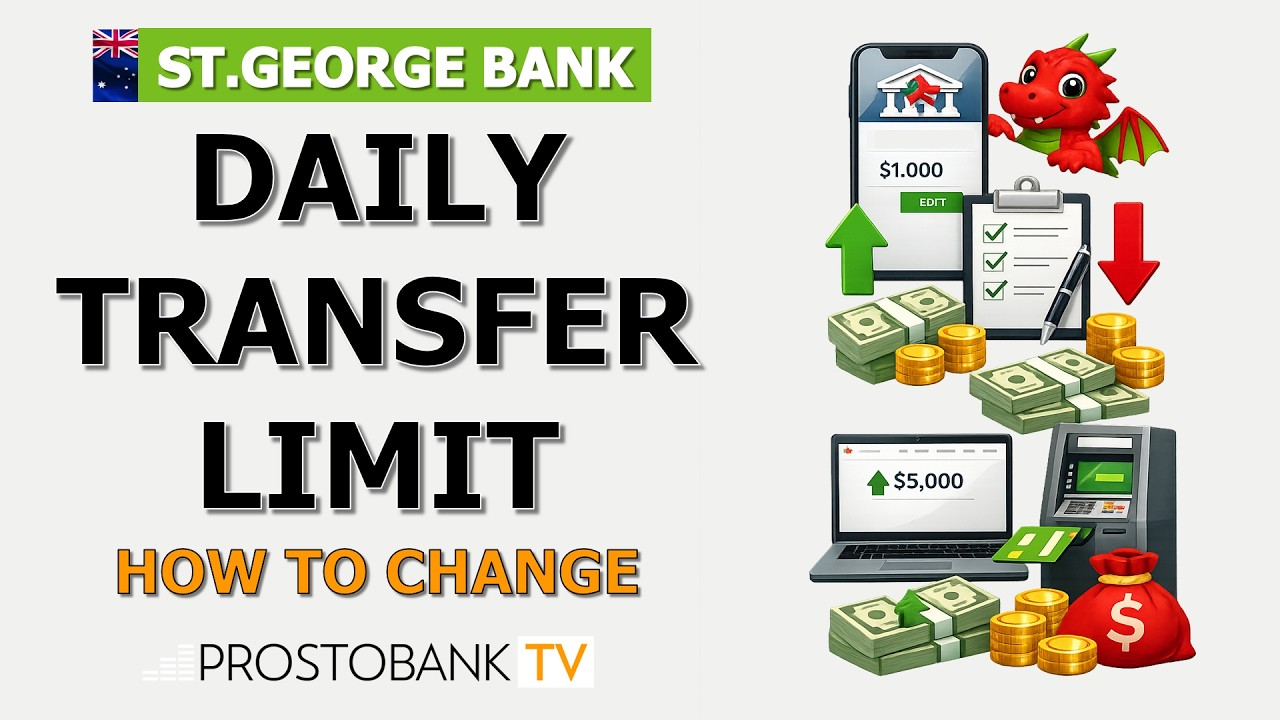
Yes, you can define your own daily payment limits via Internet Banking. Simply navigate to your settings, select Daily Limits, input your preferred amount, and authorize the change using an SMS code or device push notification.
How do I view or download my past statements?
Once logged in, click on Accounts & Cards from the side menu, select your desired account, and click View Statement. You can easily download these as PDF files for your personal financial records.