
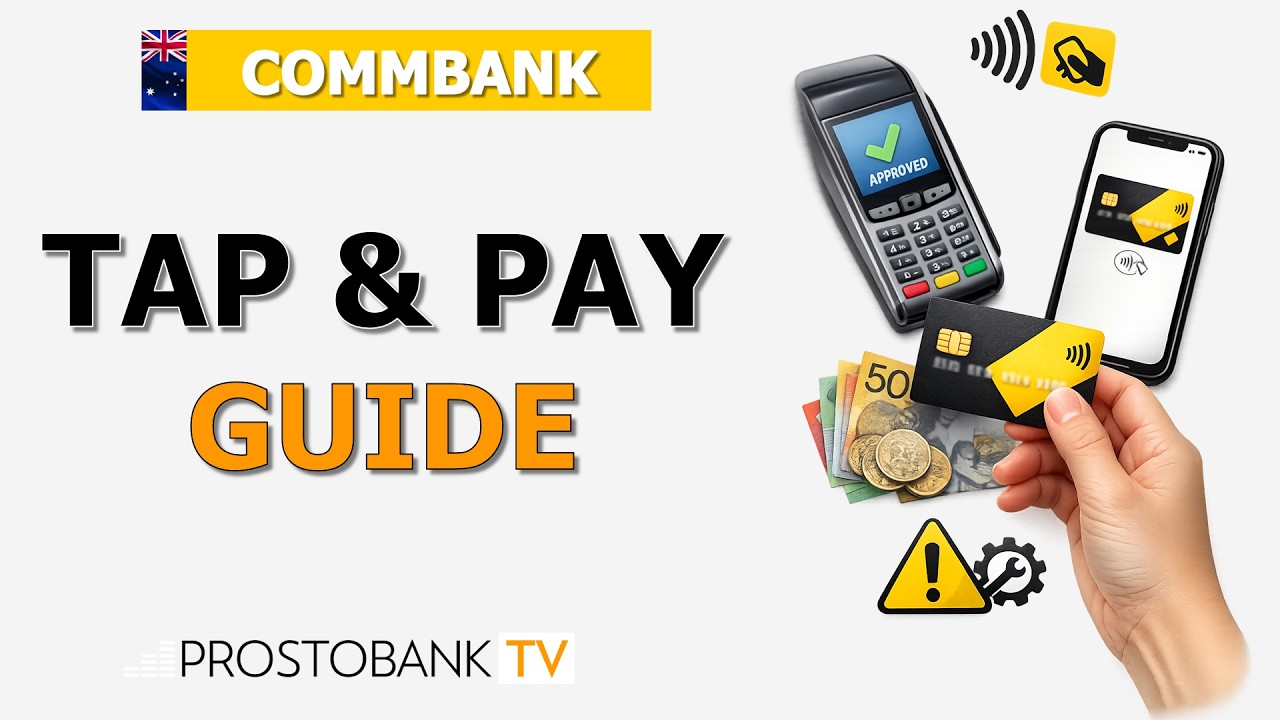

Using your smartphone or wearable device to make payments has become standard practice for many Australians. Commonwealth Bank (CommBank) supports various digital wallets, allowing you to pay at point-of-sale terminals without needing your physical debit or credit card on hand.
Before you begin, ensure your device is NFC-enabled and that you have the CommBank app installed with your credentials active. Linking your card effectively replaces the physical plastic with a digital token, keeping your actual card details secure from merchants during the transaction process.
Digital Wallet Information
| Category | Details |
|---|---|
| Methods | Apple Pay, Google Pay, Samsung Pay, Garmin Pay, Fitbit Pay |
| Processing time | Setup is generally completed within a few minutes |
| Eligibility | CommBank debit or credit cardholders with a compatible device |
| Key requirements | Active CommBank app, stable internet, and NFC settings enabled |
How to Set Up Tap & Pay
Sign in to the CommBank app, tap the Tap & Pay icon, select your preferred tap style—Wake & Tap, Unlock & Tap, or Open & Tap—then choose the card you want to use.
Tap & Pay Limits and Security
The default transaction limit for Tap & Pay is AUD 100 without PIN. For amounts above that, some terminals may prompt for PIN or biometric authentication, depending on the merchant's terminal settings.
Troubleshooting Common Issues
- MFA / Login Issues: Cause: An outdated phone number on your bank profile prevents the multi-factor authentication (MFA) code from reaching you. Fix: Update your contact details in the app's settings, then attempt the link again. Fallback: Contact CommBank support at 13 2221 to verify your identity and update your details over the phone.
- App or Browser Errors: Cause: The wallet app or the CommBank app may have cached data preventing the handshake between the two systems. Fix: Clear the cache in your phone’s settings for both the wallet app and the CommBank app, then restart your device. Fallback: Try manually adding the card details directly into the wallet app rather than using the link inside the CommBank app.
- Locked Account / ID / Access Issues: Cause: Multiple failed attempts to link the card triggers an automated security hold to protect your account. Fix: Wait for the temporary 24-hour security block to lift before trying the setup again. Fallback: Visit a local CommBank branch with your physical photo ID so a teller can review your security profile.
Pro-Tip: If you lose your physical card, you can often continue using your digital wallet while waiting for the replacement card to arrive. Check your app to see if the digital version remains active, which saves you from being without payment options while the new plastic is in the mail.
Frequently Asked Questions
Why was my tap to pay transaction declined at the shop?
When you tap your device, the system verifies the transaction against your daily limits and available cleared funds. If the terminal is older or does not support your specific digital wallet, the connection may fail, or the store might have a minimum spend requirement for contactless payments. Your practical next step is to check your CommBank app for a declined transaction notification; if the system shows no record of an attempt, the issue likely resides with the merchant's terminal rather than your account.
Is my card information shared with the merchant when I tap?
When you perform a transaction, the digital wallet uses a process called tokenization, which replaces your real 16-digit card number with a unique, randomized digital token. The merchant only ever receives this temporary token, meaning your actual account details remain encrypted and protected within the bank's system. An exception exists if you have an issue with a return; you may need to show the last four digits of your tokenized card (found in your wallet app) rather than your physical card. Your practical next step is to keep your device updated to ensure your tokenization software remains secure.